Connect Instaroom to Claude, ChatGPT, Codex, Cursor and other assistants. Share a photo of your room, say what you want to change, and Instaroom makes the design right in the chat.
Server addresshttps://out.instaroom.app/mcp
Before you start
An Instaroom account
Sign in with the Apple or Google account you use in the app. No account yet? Signing in creates one.
An Instaroom plan
Designs come from your plan, the same way as in the app. If you don't have one, get it in the Instaroom iPhone app.
An assistant that adds connectors
Any assistant that can add a remote MCP server with sign-in. The ones below are covered step by step.
Install
Pick your assistant. Each one opens Instaroom's sign-in the first time you connect.
Choose Add to Claude. It opens Add custom connector with Instaroom's name and address filled in, in the Claude app on your phone or on claude.ai.
Check the details and choose Add.
Choose Connect and sign in.
Once added, Instaroom works in Claude on the web, desktop and mobile. On Team and Enterprise plans, an owner adds it for the organization first with this organization link.
Open Settings, then Apps, then Advanced settings, and turn on Developer mode.
Choose Create app. Name it Instaroom and paste the server address.
Set authentication to OAuth, confirm and create it, then sign in.
Developer mode depends on your ChatGPT plan and workspace settings. Start a chat with @Instaroom so ChatGPT uses Instaroom instead of its own image tool.
In any assistant that supports remote MCP servers, add a server with the address above (it may be called a connector, an extension or a remote server, using Streamable HTTP) and sign in when it asks. No API key is needed. For example, in Gemini CLI:
Then run /mcp auth instaroom in Gemini CLI to sign in.
What happens when you connect
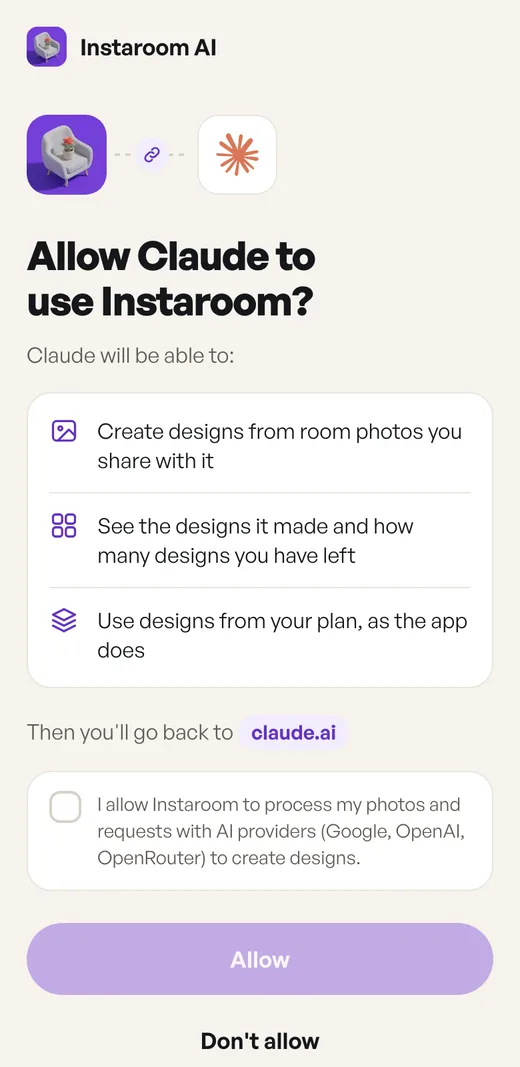
The first time, your assistant opens Instaroom in the browser. It takes a minute.
Sign inUse the Apple or Google account you use in the Instaroom app.
AllowCheck what the assistant can do and choose Allow. You're sent back to your assistant.
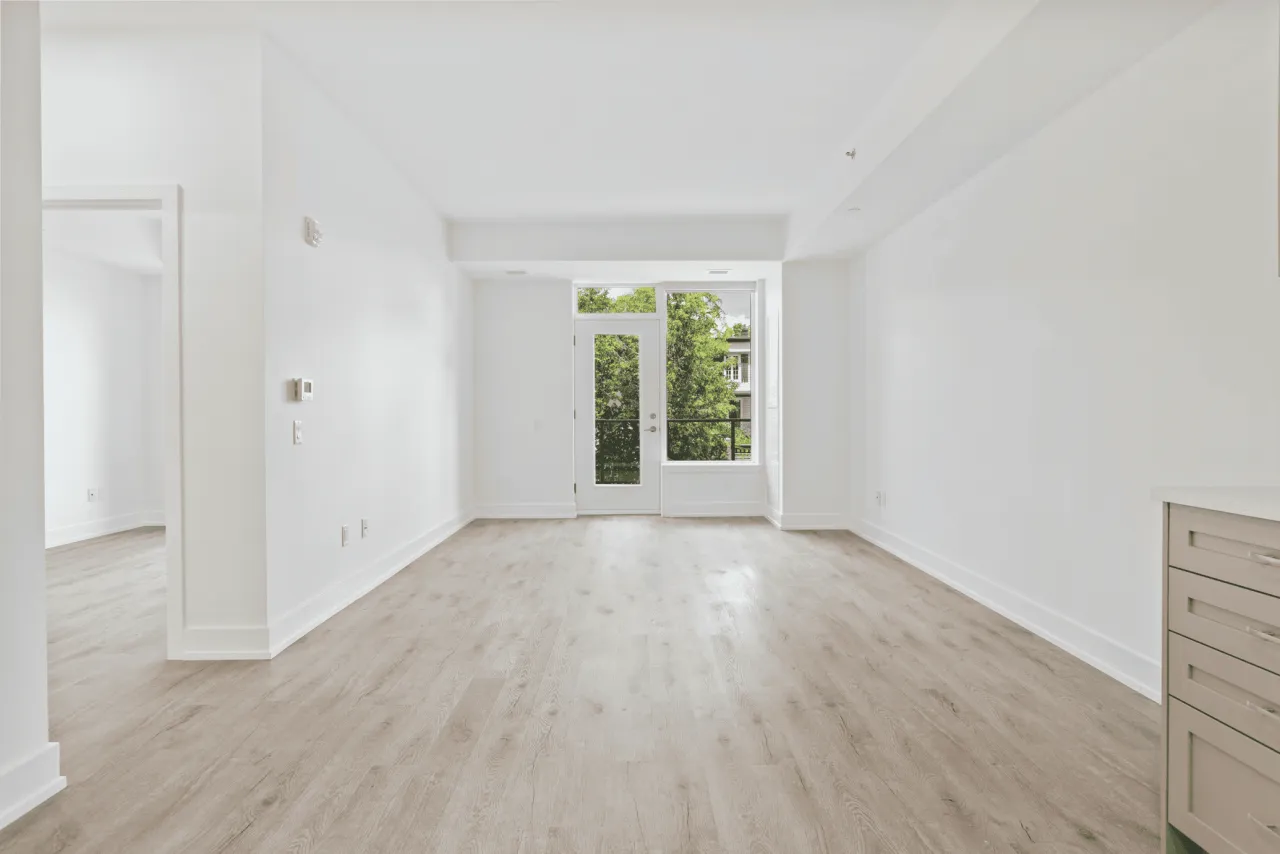
Your photo
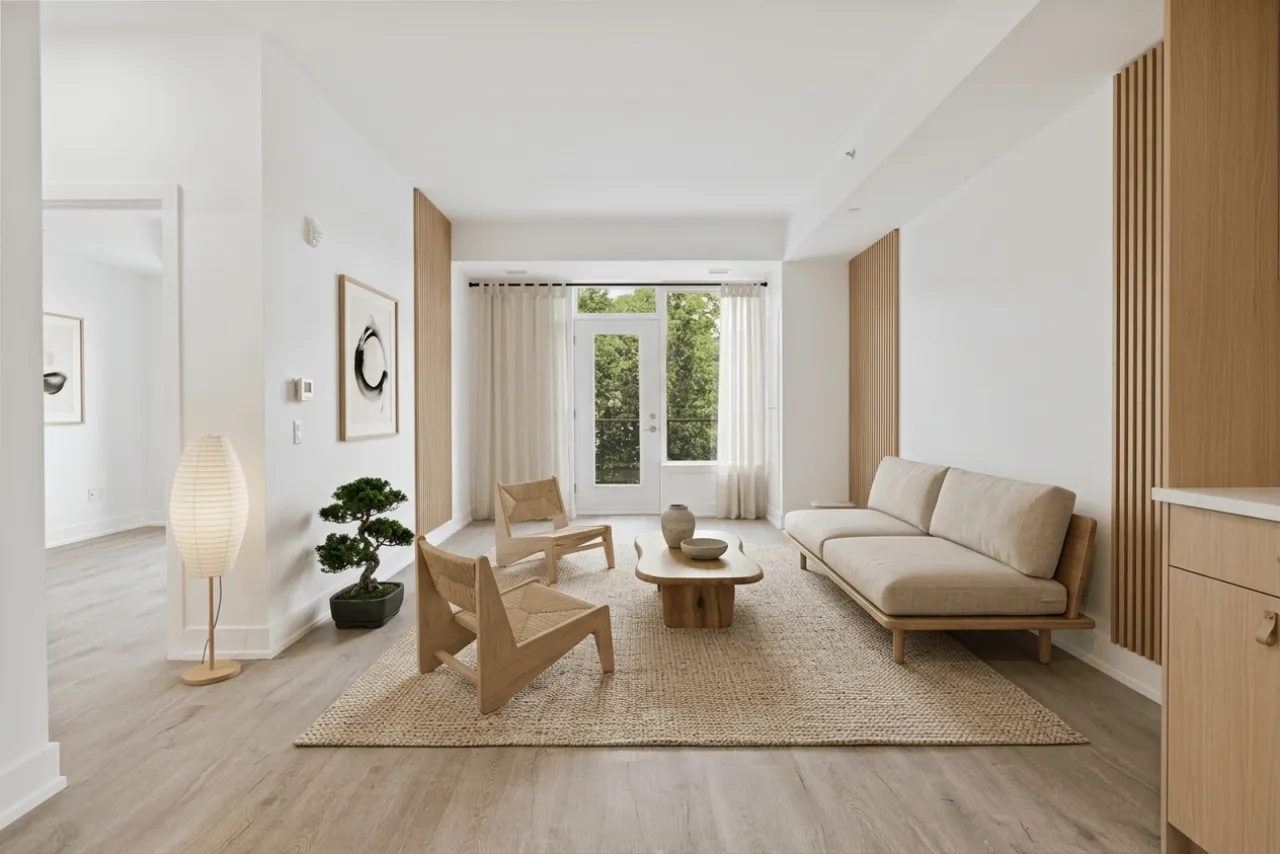
Japandi
Ask for a designShare a room photo and say what you want. The design appears in the chat.
Tips for good results
Share a clear photo
A wide, well-lit photo of the whole room works best. Attach it in the chat, or ask your assistant for an Instaroom upload link and drop the photo there.
Say what to change
Name the change and the style: walls, floor, lighting, time of day, a style you like or a piece of furniture. One clear request per message works best.
Keep going on a design
Ask for adjustments on the last design, like a different wall color or new curtains. Your assistant keeps working on the same design.
In ChatGPT, mention Instaroom
Start the first message with @Instaroom. After Instaroom makes a design in a chat, follow-ups go to it without the mention.
Things you can ask:
Paint the walls sage green and make it evening
Restyle this living room in Japandi style
Remove the clutter from the floor and the desk
Put this sofa where the old one is
Make the curtains white linen
How many designs do I have left?
Questions
Does it cost extra?
No. Designs from your assistant come from your Instaroom plan, the same way as designs in the app. Ask your assistant how many designs you have left.
Do I need the app?
You need an Instaroom account and a plan. Signing in from your assistant creates an account if you don't have one. Use the same Apple or Google account as in the app, so your plan is there.
How do I disconnect an assistant?
In the Instaroom app, open Profile, then Connected apps, and choose Disconnect. You can also remove Instaroom in your assistant's connector settings.
What happens to my photos?
Instaroom handles photos from your assistant the same way as photos in the app. Read the Privacy Policy for details.
 Instaroom AI